
Review 1Watch on YouTube
Audioalter
Easily cut, fade, normalize audio, adjust reverb, echo, pitch, and create professional audio projects swiftly.
About Audioalter
Audioalter Review: Is This Free Browser Audio Editor Actually Worth Using?
If you’ve ever needed to trim a podcast clip, add reverb to a demo track, or make a voice memo sound less like it was recorded in a bathroom, you’ve probably landed on Audioalter at some point. It shows up near the top of search results for almost every “free online audio editor” query, and it’s built a reputation as the go-to for one very specific use case: the “slowed and reverb” remix trend that took over TikTok and SoundCloud a few years back.
I spent time testing Audioalter across its main tools — pitch shifting, tempo changes, the equalizer, noise reduction, vocal removal, and the format converter — to see whether it holds up as a genuine editing tool or whether it’s just riding search traffic from a meme trend. Short answer: it’s a legitimately useful utility for quick, single-purpose jobs, but it’s not a replacement for real editing software, and it doesn’t pretend to be one.
What Audioalter Actually Is
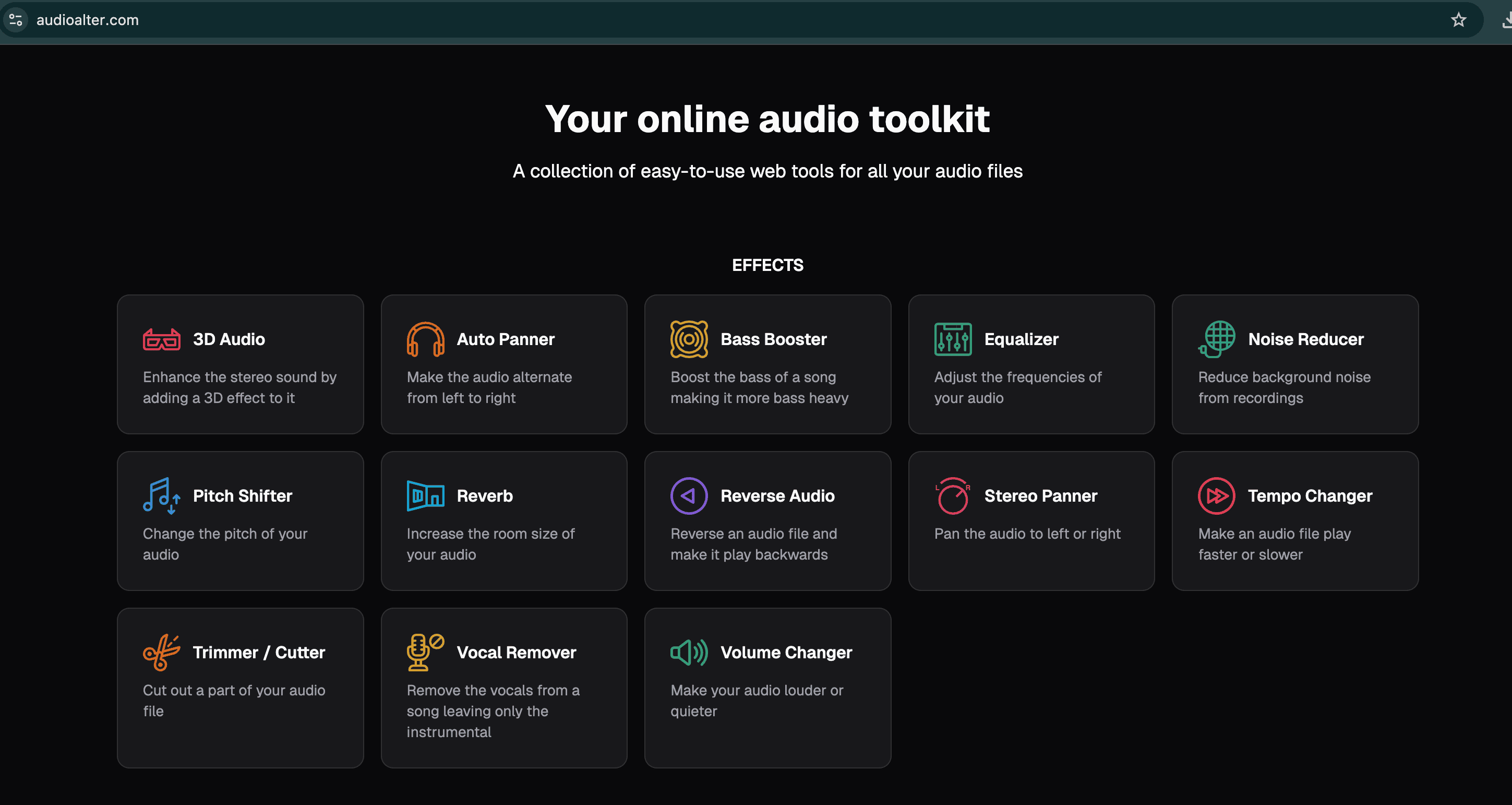
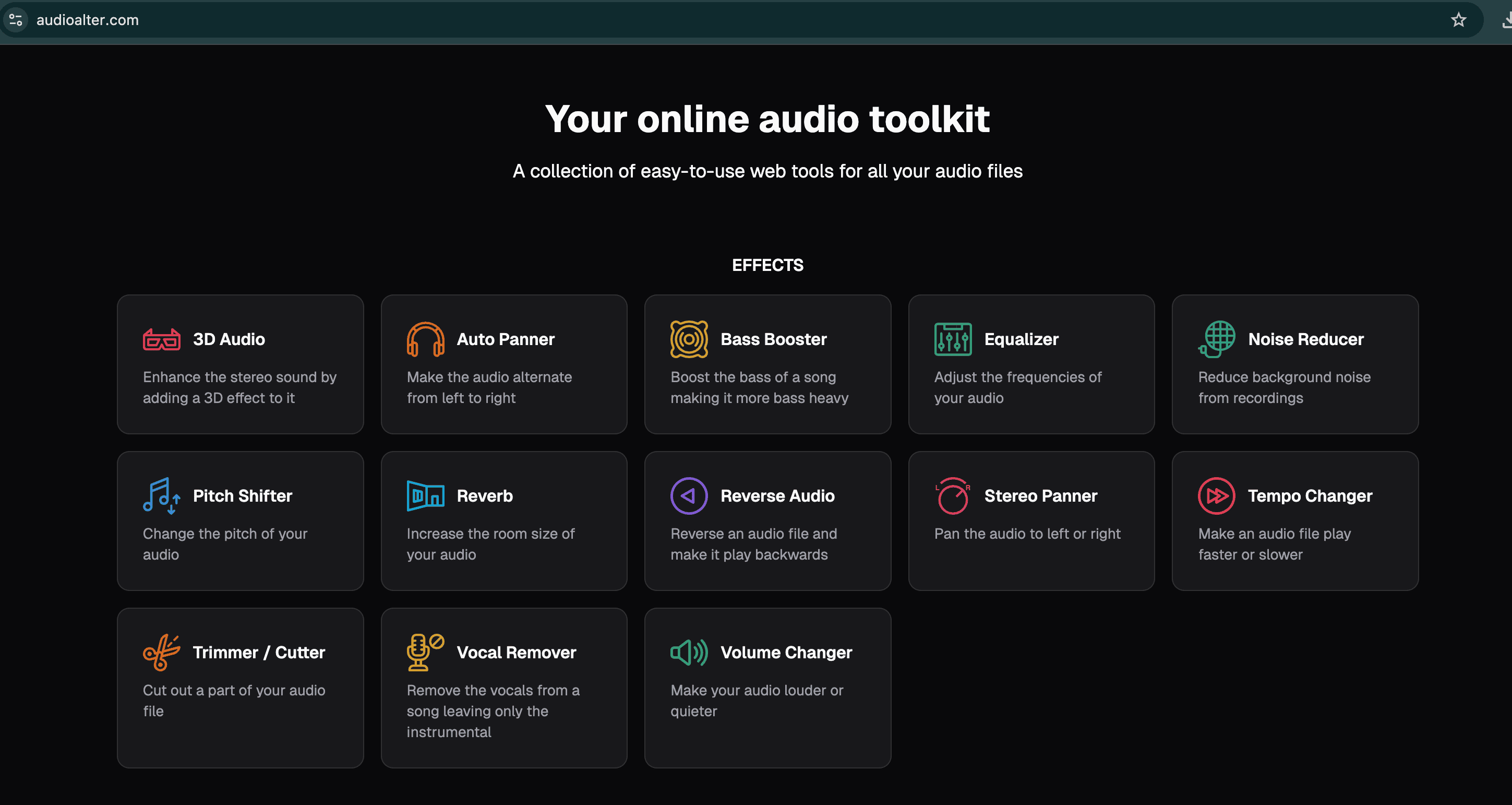
Audioalter is a browser-based audio toolkit — no account required, no software to install. You upload a file (MP3, WAV, FLAC, and a handful of other common formats), pick a tool from its menu, adjust a few sliders, and download the result. There’s no unified project view where you stack multiple edits together like you would in a DAW; each tool is essentially its own single-purpose page. Want to change tempo and add reverb? You do one, download it, then feed that file into the next tool.
That workflow sounds clunky written out, but in practice it’s fast. There’s no learning curve because there’s nothing to learn — you’re not routing signal chains or managing tracks, you’re moving one slider and hitting export.
The Tools Worth Knowing About
Pitch shifter and tempo changer are the two most-used tools on the site, and for good reason — they’re the backbone of the slowed-reverb and nightcore-style edits people search for by name. The tempo tool keeps pitch independent of speed reasonably well; slow a track down 30% and it doesn’t get that underwater, pitched-down cassette-tape effect unless you push it further than most people would want to anyway.
Reverb is preset-based rather than a fully custom convolution engine — you’re picking from room/hall/plate-style presets and adjusting wet/dry mix, not designing your own impulse response. Fine for a quick “make my vocal sound less dry” pass. Not fine if you’re chasing a specific, referenced sound for a mix you actually care about.
Vocal removal works the way most browser-based vocal removers work: it’s phase cancellation, not source separation. On tracks with a wide stereo vocal mix (a lot of modern pop) it does a passable job. On tracks with a centered, heavily processed vocal, or mono masters, you’ll hear bleed-through and it can gut the bass and drums that share the same center channel. If you need clean stems, this isn’t that tool — something like a dedicated source-separation model (Moises, LALAL.AI, etc.) will beat it every time.
Noise reduction handles consistent background hiss (fan noise, room tone, light static) reasonably well at moderate settings. Push it hard to kill louder noise and you start hearing the telltale “underwater” artifacting that comes with aggressive spectral gating — a limitation of basically every free noise reducer, not unique to Audioalter.
The equalizer is a straightforward multi-band EQ — good for basic tonal shaping, cutting mud, boosting presence. It won’t give you the surgical control of a parametric EQ in a real DAW, but for “this voice memo sounds thin, brighten it up” tasks it’s more than adequate.
Format converter and batch processing round things out. Conversion between common formats is quick and doesn’t noticeably degrade quality beyond whatever the target format’s compression costs you. Batch processing lets you run the same effect across multiple files, which is genuinely handy if you’re prepping a whole podcast season’s intro stings or applying a consistent effect across an EP.
Where It Falls Short
Everything runs through your browser, which means:
- File size limits. Larger or longer files (think full albums or hour-plus podcast episodes) can bump into caps or just process slowly. This isn’t a tool built for heavy-duty batch work on large files.
- No layered editing. You can’t stack effects in one session and adjust them relative to each other. Every tool is a one-and-done pass.
- Processing quality has a ceiling. The site is upfront that this isn’t meant to compete with a real DAW, and it shows — for serious mixing or mastering work, the signal processing here is a rough draft tool, not a finishing tool.
- No true stem separation. As mentioned, vocal isolation is phase-cancellation based, not AI source separation, so results vary a lot by track.
None of these are dealbreakers for what the tool is actually for. They’re dealbreakers if you go in expecting Audacity or Adobe Audition for free.
Who It’s Actually Good For
- Podcasters doing quick cleanup passes — normalize levels, trim silence, knock down background hiss on an interview recorded in a noisy room.
- Content creators who need a fast slowed-reverb or pitch-shifted version of a track for a video or edit, without opening a DAW for a 30-second job.
- Musicians sketching ideas — testing what a vocal sounds like pitched up or down, or previewing a tempo change before committing to it in a full session.
- Anyone doing a one-off task — converting a file format, boosting bass on a single track, generating a waveform image for a social post.
Who Should Skip It
If you’re mixing or mastering a release you actually plan to distribute, doing serious multi-track podcast editing, or need clean vocal stems for remixing, this isn’t your tool. You’ll hit the ceiling fast, and you’ll notice it in the final audio quality. In that case, something like Audacity (free, but with a real learning curve) or a paid DAW is the better investment of your time.
Audioalter vs. the Alternatives
Compared to similarly scoped free web tools like 123apps or AudioMass, Audioalter’s main edge is breadth — more effects live under one roof, and the interface leans more toward “pick an effect and go” than “learn a mini timeline editor.” Compared to a real DAW, it’s not really a fair fight; Audioalter isn’t trying to be one. Compared to AI-driven tools built specifically for noise cleanup or stem separation (Adobe Podcast’s speech enhancement, LALAL.AI, Moises), those dedicated tools will outperform Audioalter’s general-purpose versions of the same features — but they’re also solving one problem instead of ten.
Bottom Line
Audioalter earns its search rankings honestly: it’s fast, free, requires no signup, and covers a genuinely wide set of common audio tasks without any bloat. The tradeoff is depth — every tool here is the “good enough, quickly” version of something a real DAW does better. For quick fixes, one-off effects, and the kind of casual editing most people actually need day to day, that tradeoff is completely reasonable. For anything you’re planning to release, mix seriously, or need pristine stems from, treat Audioalter as a sketchpad, not a finishing studio.
Rating: 3.5/5 — genuinely useful for what it’s built for, limited the moment you need more than that.
Video Reviews
User Reviews
No reviews yet. Be the first to review Audioalter.
Similar Tools in Audio Editor

HeardThat
Free tier available
Amplify your voice in conferences, group conversations, and classrooms, ensuring you're heard in noisy or large settings.
Audio EditorDesign & Media
LipSync AI
Contact for pricing
Generate lifelike lip-synced videos, customize expressions, and create personalized clips from uploaded audio and video.
Audio EditorDesign & Media
Zynaptiq Unveil
Contact for pricing
Enhance recordings, reduce artifacts, and transform audio quality with customizable settings.
Audio EditorDesign & Media

Audionamix XTRAX STEMS
Contact for pricing
Create individual stems, isolate vocals and instruments, and export up to four stems in multiple formats.
Audio EditorDesign & Media