
How to Turn Off AI Overview on Any Device
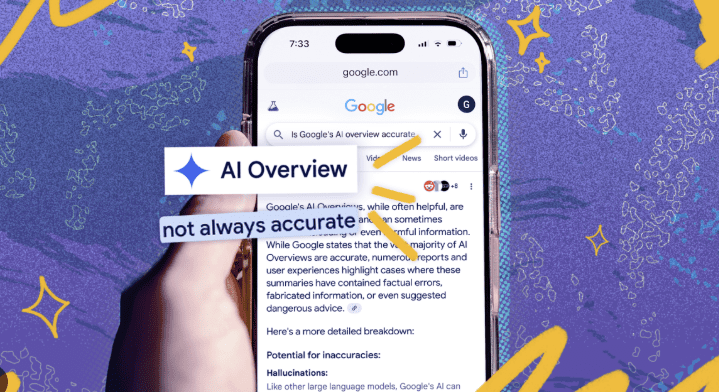
Many of our gadgets and apps now come with built in AI features, and while they can be helpful many users have privacy concerns, focus issues, or just prefer not to deal with them. Today we’ll show you how to turn off AI features on any device, why you might want to disable them, and what to consider before you do.
Why Disable AI?
These features are designed to help, but they’re not always beneficial for everyone. AI assistants often listen for wake words, which can feel like someone eavesdropping on you and AI-driven notifications and suggestions can be distracting especially when you’re just searching for a specific answer.
Not everyone wants their apps or devices to guess what they need, and many of us prefer doing tasks manually without AI stepping in. Plus, on some devices, AI features run in the background and can use up battery life or processing power and an older smartphone might even slow down because of fancy AI features you don’t use so disabling them could possibly improve performance and battery life by reducing what’s running behind the scenes.
Turning Off AI Voice Assistants
Voice assistants are often the first thing that comes to mind when thinking about AI on personal devices. This includes helpers like Siri, Google Assistant, Alexa, and Bixby. They’re useful for hands free help, but they also constantly await commands, which not everyone likes for privacy reasons. Here’s how to disable each of them, depending on the device you have.
Disabling Siri (Apple Devices)
On iPhone or iPad open Settings and go to Siri & Search, then toggle off Listen for Hey Siri and Press Side Button for Siri.
On Mac open System Settings and click on Siri. Turn off the Enable Siri option.
Disabling Google Assistant (Android Devices)
Open the Google app on your phone and tap your profile icon to go to its settings. Choose Settings > Google Assistant, then find the General section and toggle Google Assistant to Off.
Disabling Amazon Alexa (Echo Devices)
Press the mic on/off button on your Echo device. The light will turn red, indicating Alexa’s microphones are disabled.
If you don’t want Alexa active at all, simply disconnect the power, which is the only way to completely stop an Echo from listening.
Disabling Bixby (Samsung Phones)
Newer Samsung phones often launch Bixby when you long press the side button. To change that, go to Settings > Advanced Features > Side Key then change it from launching Bixby to Power off menu.
To stop voice commands, open the Bixby app and find Bixby’s settings, then turn off any Voice Wake-up feature.
Disabling Cortana (Windows PCs)
Open Settings and go to Cortana. Turn off Hey Cortana.
On Windows 11 Cortana is no longer enabled by default.
Turning Off AI Features in Apps
AI powers a lot of the “smart” features in apps and online services, including things like predictive text, content recommendations, personalized ads, and AI search results so depending on what bothers you, you can often disable or limit these features individually.
Autocorrect and Predictive Text
Your phone’s keyboard tries to predict your next word or autocorrect your typing which can be both convenient and annoying.
If you want to disable it on your iPhone, go to Settings > General > Keyboard and toggle off Auto-Correction and also Predictive text.
If you want to disable it on an Android device, this will depend on your keyboard app. If you use Gboard go to Settings > System > Languages & input > On-screen keyboard > Gboard > Text correction then turn off Auto-correction and Suggest next word.
Personalized Content Feeds
A lot of people get news or social updates through feeds on social media, which are usually ordered by an AI algorithm that shows what it thinks you’ll engage with, rather than strictly in chronological order. While you often can’t completely disable the algorithm, there are ways to reduce its impact, first by sorting your feed either by Most Recent or Following.
TikTok’s For You page is almost entirely AI-driven, with no way to permanently switch it to a chronological feed so you can use the Following tab instead and click Not Interested on recommended content.
YouTube’s recommendations can’t be completely turned off either, but you can limit them by pausing your YouTube watch history in your account settings, so YouTube has less data to personalize suggestions.
Personalized Ads and Recommendations
Another area where AI is busy is in advertising and product suggestions. Your first line of defense should be using an ad blocker, but if for some reason you’re unable to, you can limit how personal the targeting is.
For Google, you can go to your Google Account’s Data & Privacy settings and find Ad Settings, then turn off Ad Personalization.
On Facebook, under Settings & Privacy, look for Ads Preferences and set it to not use data about your off-Facebook activities or interests for ads.
Platforms like Amazon or Netflix use AI to recommend products or content. You often can’t fully turn these off, but you can somewhat reset or avoid them by creating separate accounts for content you don’t want affecting your main recommendations or using an incognito or private window to browse.
Things to Consider Before Disabling
Turning off AI features can definitely give you more privacy or reduce annoyances, but it’s not always the smoothest path. For one, turning off certain AI features can mean giving up some handy shortcuts like hands free reminders or predictive text.
Many devices let you turn off just the parts that bother you and keep the rest, so you could leave Google Assistant on but disable the hotword so it only listens when manually activated, or you might keep using YouTube but with watch history paused to limit its recommendations.
Keep in mind that software updates might add new AI features or sometimes reset settings, so whenever you update your device or apps, it’s worth reviewing settings again.
Using AI on Your Own Terms
While this article is about turning off AI, you might still want to use certain AI tools, but in a way that you control. The good news is you can often cherry pick what works for you. Maybe you don’t like your phone listening for voice activation all the time, but you do like using Google Assistant to get directions or play music when you’re driving. In that case, you can turn off the always listening feature but still trigger the assistant with a button when needed.
If you’re someone who still wants to experiment with AI but doesn’t want it everywhere, you can use dedicated platforms or apps when you need them like a specialized AI chatbot service.
We live in a time when technology is extremely powerful and sometimes a bit intrusive, but the nice thing is most of these devices and apps do give us an off switch or at least some configuration to dial things back. Just remember, technology should serve you, not the other way around.